User manual for certification bodies and auditors.
Version 1.6Matches calculator build 5337713, 20 November 2026
About this manual
Disclaimer
This calculator is a supporting tool only, no rights can be derived from the calculations.
Know the scopes before you start
When using this audit time calculator the user must know which activities can be performed per scope as described in GMP+ Document F0.3. The basis for calculating audit time is the applicable scopes of a company. When incorrect scopes are selected this will give an incorrect calculation of the actual situation at the company.
This manual explains how to use the GMP+ Audit Time Calculator, block by block. It describes what each field does, when a block is greyed out and why, and how to read the result.
Every label of the calculator is quoted exactly as it appears on screen, like this: Calculation Results.
The screenshots were made from the calculator with fictitious input. The GMP+ number GMP123456 in them is an example, not a real company.
Use the search field at the top to find a chapter using a few words or a whole question.
Part 1Getting started
1.1What the calculator is for
The calculator works out the minimum audit time for a GMP+ Feed Safety Assurance (FSA) audit and the Feed Responsibility Assurance (FRA) scopes that come with it, for single companies including additional production locations and/or multi-site locations.
Reader
How they use the calculator
Certification bodies
The main users.
Feed companies
May use it to understand how the audit time for their company can be calculated.
The rules come from two GMP+ documents. The header names them and their version: Based on CR2.0 and CR3.0 both Version EN: 2 March 2026. CR2.0 gives the FSA audit times (Appendix 2, Tables 1, 2 and 3, and Appendix 4 for multi-site), CR3.0 the FRA audit times. Both names in the header are links to the documents on the GMP+ website. These documents take precedence over the tool.
Everything is calculated in your browser. You do not need an account, a login or an installation. The official addresses are audittimecalculatorcertificationbodies.pages.dev (Certification Body version) and audittimecalculatorcompanies.pages.dev (Company version).
1.2The screen at a glance
The calculator is one page with three parts.
The top bar holds the title with the badge Certification Body version or Company version, five buttons (Reset, Print, Save, Load and Manual), the version of CR2.0 and CR3.0 and the disclaimer. Press the V key to show or hide the build stamp, for example Last updated: 20 Nov 2026, 16:19 | 8eec7b4. Manual opens this manual in a new tab.
The blocks on the left are eleven numbered cards. You work through them from top to bottom. Green cards are FSA, the purple card 4 is FRA.
The results on the right sit in the panel Calculation Results, with the total, the minimum on-site time and the breakdown. The panel is recalculated on every change, and on a wide screen it stays in view while you scroll.
On a narrow screen the results sit below the blocks, in addition on a phone also the five buttons move to a bar at the bottom of the screen.
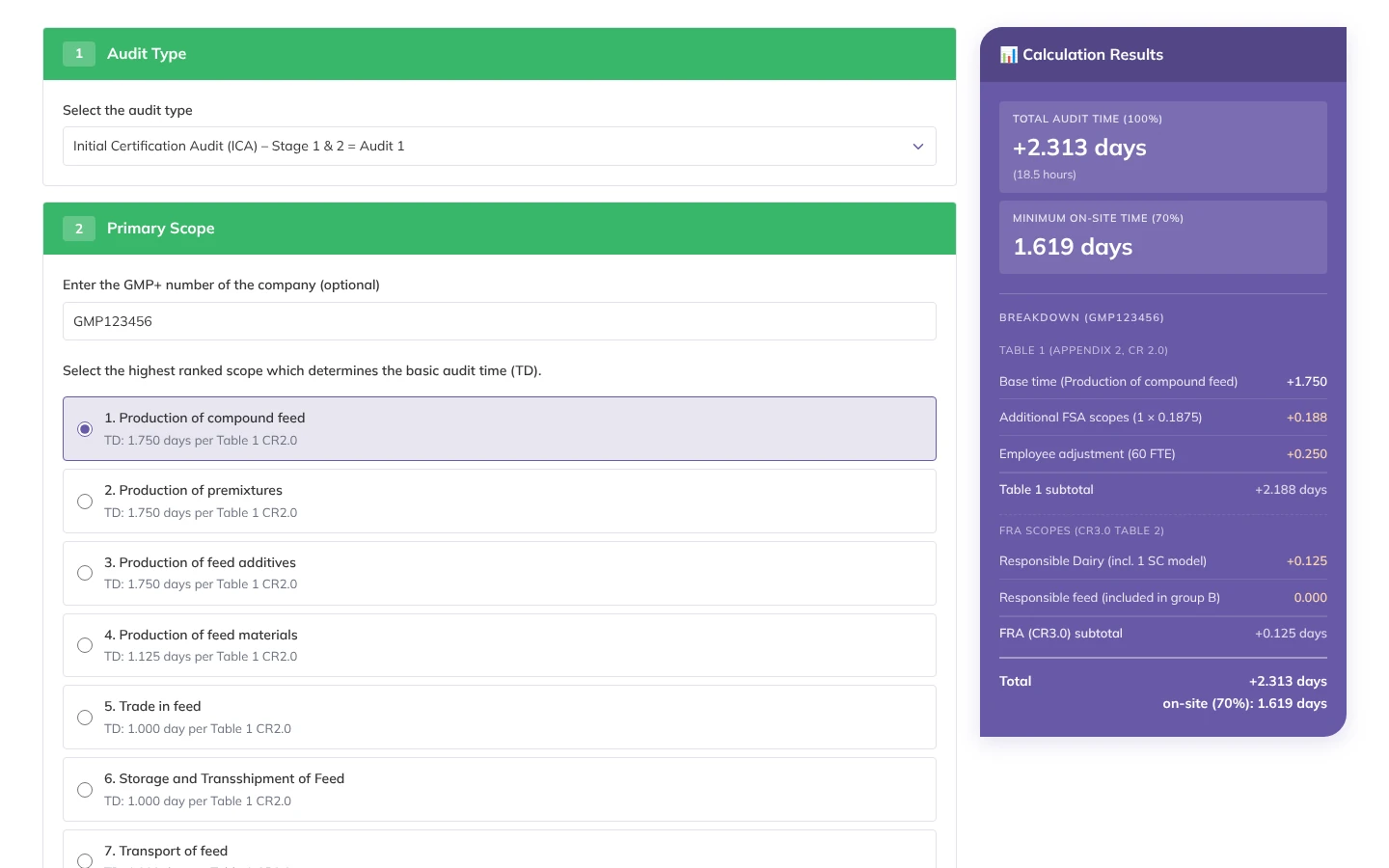
Figure 1The top bar, with the buttons, the scheme version, the build stamp (shown with the V key) and the disclaimer.Figure 2The calculator, filled in with an example.
Greyed out means not applicable
A block or section that does not apply to what you have chosen is shown faded and cannot be selected. Chapter 2.12 lists every reason a block can be greyed out.
Part 2The eleven blocks
The blocks depend on each other. Fill them in from top to bottom.
2.1Block 1, Audit type
The card is called Audit Type and has an option list, Select the audit type, which becomes visible when you click on the arrow:
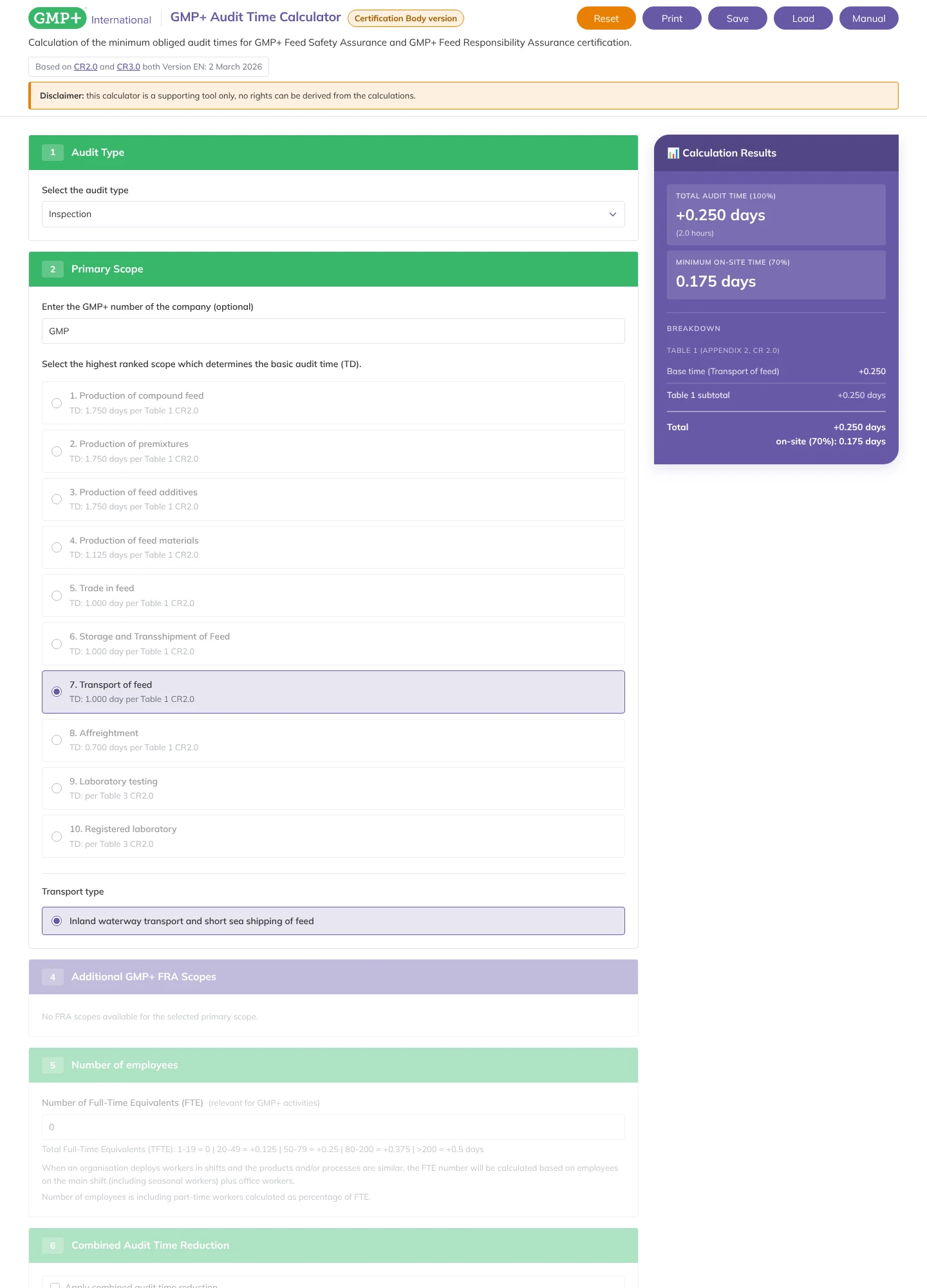
For scopes 1 to 8 the audit type does not change the result, except Inspection. When you choose Inspection, the calculator automatically selects 7. Transport of feed with Inland waterway transport and short sea shipping of feed, and the result is a base time of 0.250 days (2 hours). For the two laboratory scopes, the times in CR2.0 Table 3 differ between audit types.
Figure 4With Inspection, only the inspection base time counts.
2.2Block 2, Primary scope
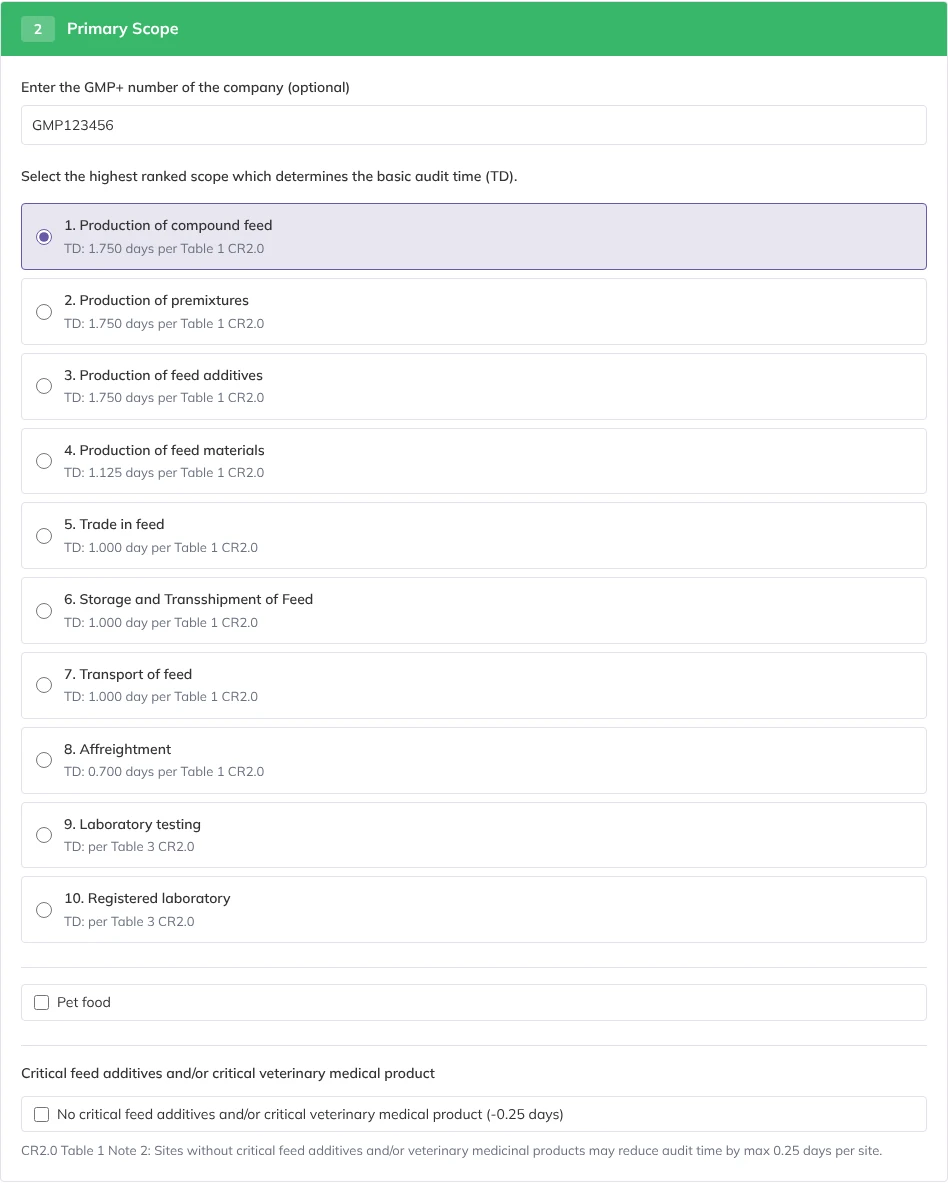
The card Primary Scope holds the company number and the scope that sets the base time (TD). The text on the card says: Select the highest ranked scope which determines the basic audit time (TD). The ranking is given in CR2.0 Appendix 2.
The ranking must be applied as follows (highest first, the same order as the list on the card):
Production of compound feed
Production of premixtures
Production of feed additives
Production of feed materials
Trade in feed
Storage and Transshipment of Feed
Transport of feed
Affreightment
Laboratory testing
Registered laboratory
Pet food is not a separate scope in this list: tick Pet food under scope 1, 4 or 5 (see Extra questions under the scope list).
GMP+ number of the company
The field is called Enter the GMP+ number of the company (optional). It always starts with GMP, followed by the 6 digits of the GMP+ number of the company. This field does not change the audit time. When it is filled in, the number is shown next to the heading Breakdown in the panel Calculation Results (chapter 3.1). It is also used in the file name when you print to PDF (chapter 3.4) and at the start of the name of a saved calculation (chapter 3.3).
The scopes
Scope
Base time (TD)
1. Production of compound feed
1.750 days
2. Production of premixtures
1.750 days
3. Production of feed additives
1.750 days
4. Production of feed materials
1.125 days
5. Trade in feed
1.000 day
6. Storage and Transshipment of Feed
1.000 day
7. Transport of feed
1.000 day
8. Affreightment
0.700 days
9. Laboratory testing
per Table 3 CR2.0
10. Registered laboratory
per Table 3 CR2.0
Extra questions under the scope list
Depending on the scope, one extra question appears under the list.
Scope
Extra question
1, 4 and 5
A checkbox Pet food. When ticked, the base time line reads - Petfood after the scope name, and the matching pet food variant is removed from block 3.
1 only
No critical feed additives and/or critical veterinary medical product (-0.25 days). Ticking it subtracts 0.25 days, shown directly under the base time.
7
Transport type, with Road transport of feed or Rail transport of feed. Choose one before you go on: block 3 shows Please select Transport type first to show available options. until you do. Rail transport takes 0.30 days off automatically (chapter 2.8).
9
ISO/IEC 17025 Accreditation Status, with Fully ISO/IEC 17025 accredited, Partly ISO/IEC 17025 accredited or Not ISO/IEC 17025 accredited. Until you choose one, the total stays at zero with a warning. The rest of the laboratory input is in block 8.
10
Outsourcing type: outsourcing all analyses (0.50 days), partly outsourcing (1.00 days) or no outsourcing (1.00 days). Until you choose one, the total stays at zero.
Figure 5Block 2 with scope 1 selected, showing the pet food and critical additives questions.
Laboratory scopes lock most of the page
With 9. Laboratory testing or 10. Registered laboratory as primary scope, blocks 5, 6, 7, 9, 10 and 11 are greyed out. The audit time is then calculated based on CR2.0 Table 3, entered in block 2 and in the laboratory sections of block 8.
2.3Block 3, Additional GMP+ FSA scopes
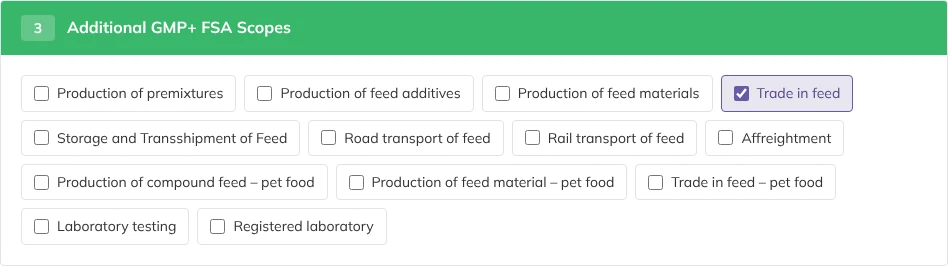
Tick every other FSA scope the company holds. Each one adds 0.1875 days to Table 1, shown as Additional FSA scopes (n × 0.1875). Laboratory testing and Registered laboratory do not add 0.1875; they get their own time from Table 3 in block 8.
The list only offers scopes ranked lower than the primary scope, so choose the highest-ranking scope in block 2. What you see depends on block 2.
Block 3 is hidden when the audit type is Inspection.
Figure 6Block 3, with Trade in feed ticked.
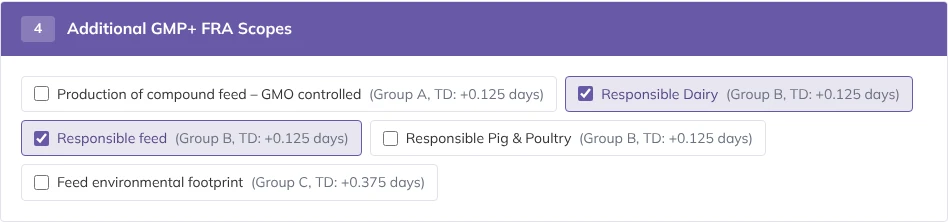
2.4Block 4, Additional GMP+ FRA scopes
The purple card Additional GMP+ FRA Scopes lists the FRA scopes from CR3.0 that can be added to the scopes in blocks 2 and 3. Each line shows its group and time.
All group B scopes together count as one. The first one ticked adds 0.125 days (incl. 1 SC model). Every further group B scope stays in the breakdown with 0.000 and the text (included in group B), so you can see it was taken into account.
Figure 7Block 4 with two group B scopes ticked.
A group B scope also opens Additional supply chain models (FRA) in block 8 and the SC model question on the multi-site location cards in block 11.
In the breakdown, the Additional SC models line comes directly under the group B lines, before group C.
2.5Block 5, Number of employees
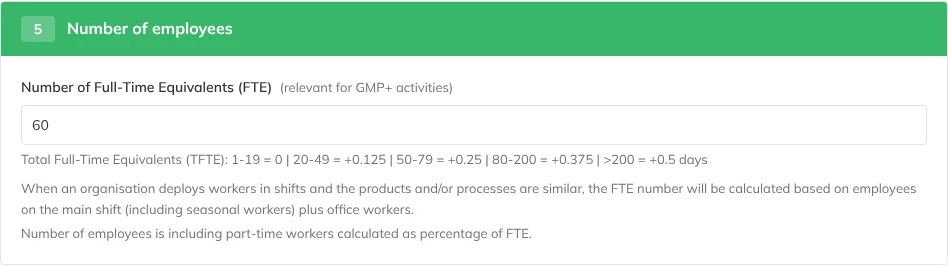
Type the number of FTE in Number of Full-Time Equivalents (FTE)(relevant for GMP+ activities). Part-time workers count as a share of an FTE. When the company works in shifts with similar products and processes, count the main shift (including seasonal workers) plus office workers. Both rules are printed on the card.
FTE
Added to Table 1
1 to 19
0
20 to 49
+0.125 days
50 to 79
+0.25 days
80 to 200
+0.375 days
more than 200
+0.5 days
Figure 8Block 5.
FTE 0 locks the blocks below
The field starts at 0. While FTE is 0 for primary scopes 1 to 4, blocks 6, 7, 8, 9, 10 and 11 are greyed out. Enter the FTE first, then fill in the blocks below it.
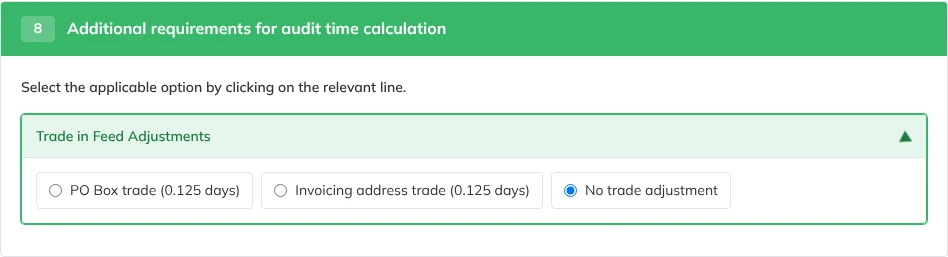
While FTE is 0 for primary scope 5, 6, 7 or 8 (trade, storage, transport, affreightment), blocks 6, 7, 9, 10 and 11 are greyed out. Block 8 is available, but it only shows the section of that scope, and in it only the PO-box, invoicing address and "no adjustment" options can be selected. Figure 11 in chapter 2.8 shows it.
With FTE above 0 it is the other way round. For primary scope 5, 6, 7 or 8, block 8 then shows all its options except PO-box and invoicing address, also when block 3 or block 4 has scopes ticked.
The number of FTE also decides which FTE-based reductions block 8 offers (chapter 2.8).
2.6Block 6, Combined audit
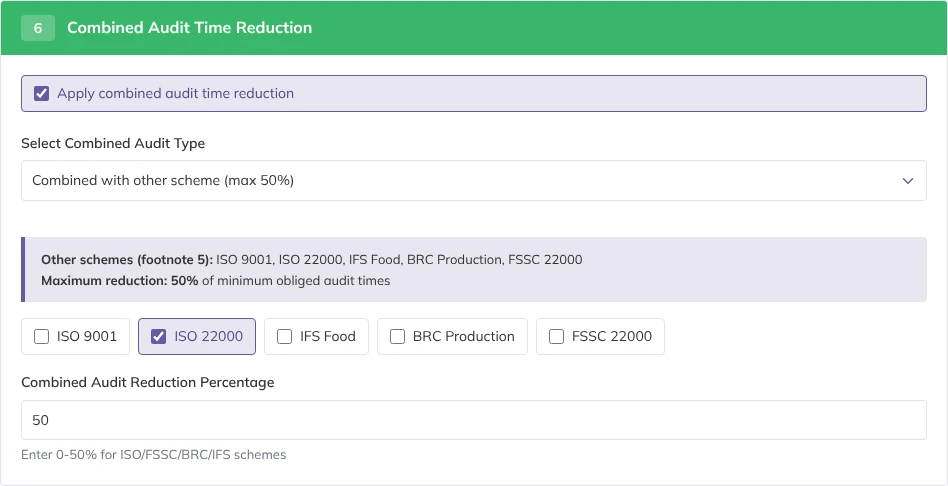
The card Combined Audit Time Reduction is for an audit combined with another scheme, performed by the same audit team during the same audit. Tick Apply combined audit time reduction to show the fields. Unticking it sets block 6 back to No combined audit. Then choose in Select Combined Audit Type:
No combined audit
Combined with TS1.2 equivalent scheme (max 75%). The card lists examples (FAMI-QS, QS, Pastus+, GTP).
Combined with other scheme (max 50%). Tick the scheme or schemes: ISO 9001, ISO 22000, IFS Food, BRC Production, FSSC 22000. The percentage field stays greyed out until at least one is ticked.
Type the percentage in Combined Audit Reduction Percentage. It is deducted from the Table 1 subtotal and shown as Combined audit reduction (x% of Table 1). A percentage above the maximum is set back to 75 or 50.
Figure 9Block 6 combined with ISO 22000 at 50%.
Block 6 and block 7 exclude each other. Ticking Apply combined audit time reduction and choosing a combined audit type greys out block 7, and the other way round. A combined percentage above 0 also greys out the trade, storage, transport and affreightment sections of block 8.
2.7Block 7, Audit time reduction
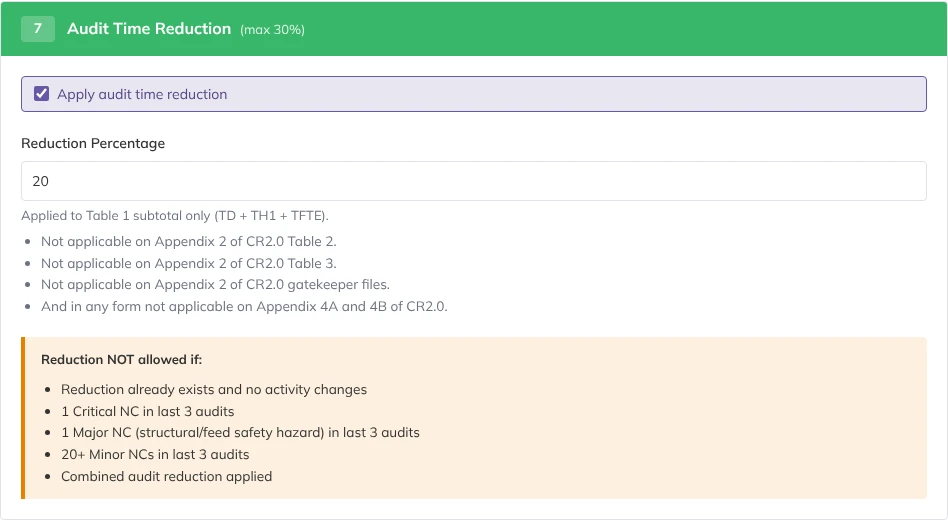
Tick Apply audit time reduction and type a Reduction Percentage from 0 to 30. A higher number is set back to 30. The reduction is taken off the Table 1 subtotal only (TD + TH1 + TFTE) and shown as Table 1 reduction (n% of x).
The card lists what the reduction does not apply to (Table 2, Table 3, gatekeeper files, Appendix 4A and 4B) and when it is not allowed at all:
Reduction already exists and no activity changes
1 Critical NC in last 3 audits
1 Major NC (structural/feed safety hazard) in last 3 audits
20+ Minor NCs in last 3 audits
Combined audit reduction applied
You check the conditions yourself
The calculator does not know the audit history of the company. It cannot check the first four conditions. Only apply the reduction when you have checked them yourself.
Figure 10Block 7 with a reduction of 20%.
Ticking block 7 greys out block 6. A reduction above 0% also greys out the trade, storage, transport and affreightment sections of block 8. When multi-site applies, the breakdown line adds excl. main office extra: the main office surcharge from block 11 is not reduced.
2.8Block 8, Additional requirements
The card Additional requirements for audit time calculation holds a number of sections that fold open. The text on the card says: Select the applicable option by clicking on the relevant line. Click the title bar of a section to open or close it. A section that does not apply is faded and says why, for example Not applicable for selected scope (trade scope only). That text has the same type and colour as the title of the section.
Section
Open when
Options
Trade in Feed Adjustments
Primary scope 5
Trade ≤ 2 FTE (-0.1875 days), Forage trade ≤ 5 products (-0.5 days), Trade to livestock farms (-0.75 days), PO Box trade (0.125 days) and Invoicing address trade (0.125 days) (FTE 0 only), No trade adjustment
Road transport ≤ 2 FTE (-0.63 days), Road transport 3-5 FTE (-0.40 days), PO-box and invoicing address (FTE 0 only), no adjustment
Affreightment Adjustments
Primary scope 8 with FTE 0
PO-box and invoicing address, no adjustment
Antibiotic-free
Primary scope 1 to 4
Antibiotic-free production site (+0.25 days)
Dioxin Monitoring
Primary scope 1
Dioxin-monitoring in feed for laying hens (+0.125 days)
QM-Milch
Primary scope 1, 4 or 5, or Production of feed materials or Trade in feed in block 3
QM-Milch certified organisation (+0.125 days), and for QM-Milch certified sublocations +2 to +6 hours at the main office, depending on the number of companies
Laboratory Testing
Primary scope 9 or Laboratory testing in block 3
Accreditation status (when it is an additional scope), number of analyses, Accredited for > 50 analyses (+0.094 days), and for labs that are not accredited Also certified for ISO 9001/ISO 22000 (-35%)
Registered Laboratory
Primary scope 10 or Registered laboratory in block 3
Outsourcing type (when it is an additional scope), Additional outsourced analyses (+0.0625 days each), Additional performed analyses (+0.25 days each), Combined with Lab Testing scope (-50%), Has ISO/IEC 17025 accreditation (-50%)
Additional supply chain models (FRA)
A group B scope in block 4
Number of additional supply chain models, at most 3, +0.063 days each
The laboratory options only show the fields that fit the choices before them. For example, the analyses ranges appear once the accreditation status is chosen, and the extra analyses fields depend on the outsourcing type.
FTE-based reductions only for a single scope
The FTE-based options appear only when the FTE in block 5 fits and the company has a single scope, so nothing ticked in block 3 or block 4:
Trade ≤ 2 FTE (-0.1875 days): FTE 1 or 2.
Storage ≤ 5 FTE (-0.1875 days): FTE 1 to 5.
Road transport ≤ 2 FTE (-0.63 days): road transport, FTE 1 or 2.
Road transport 3-5 FTE (-0.40 days): road transport, FTE 3 to 5.
Choosing an adjustment locks blocks 6 and 7
Choosing any option other than "no adjustment" in the trade, storage, transport or affreightment section greys out blocks 6 and 7. It works the other way too: a combined audit or audit time reduction percentage above 0 greys out these four sections.
PO-box and invoicing address fix the total
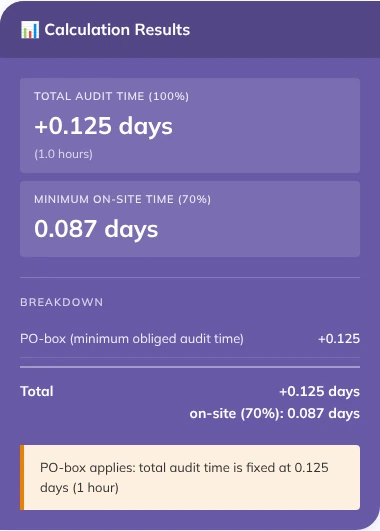
A PO-box or invoicing address option sets the whole audit time to 0.125 days (1 hour), whatever else is filled in. The breakdown shows a single line without a group heading, and a warning such as PO-box applies: total audit time is fixed at 0.125 days (1 hour).
These two options are only offered with FTE 0 in block 5 (chapter 2.5). With FTE above 0 they are not shown.
Figure 11Primary scope trade in feed with FTE 0: block 8 only offers the PO-box and invoicing address options.Figure 12The result after choosing PO Box trade (0.125 days).
Rail transport is applied automatically
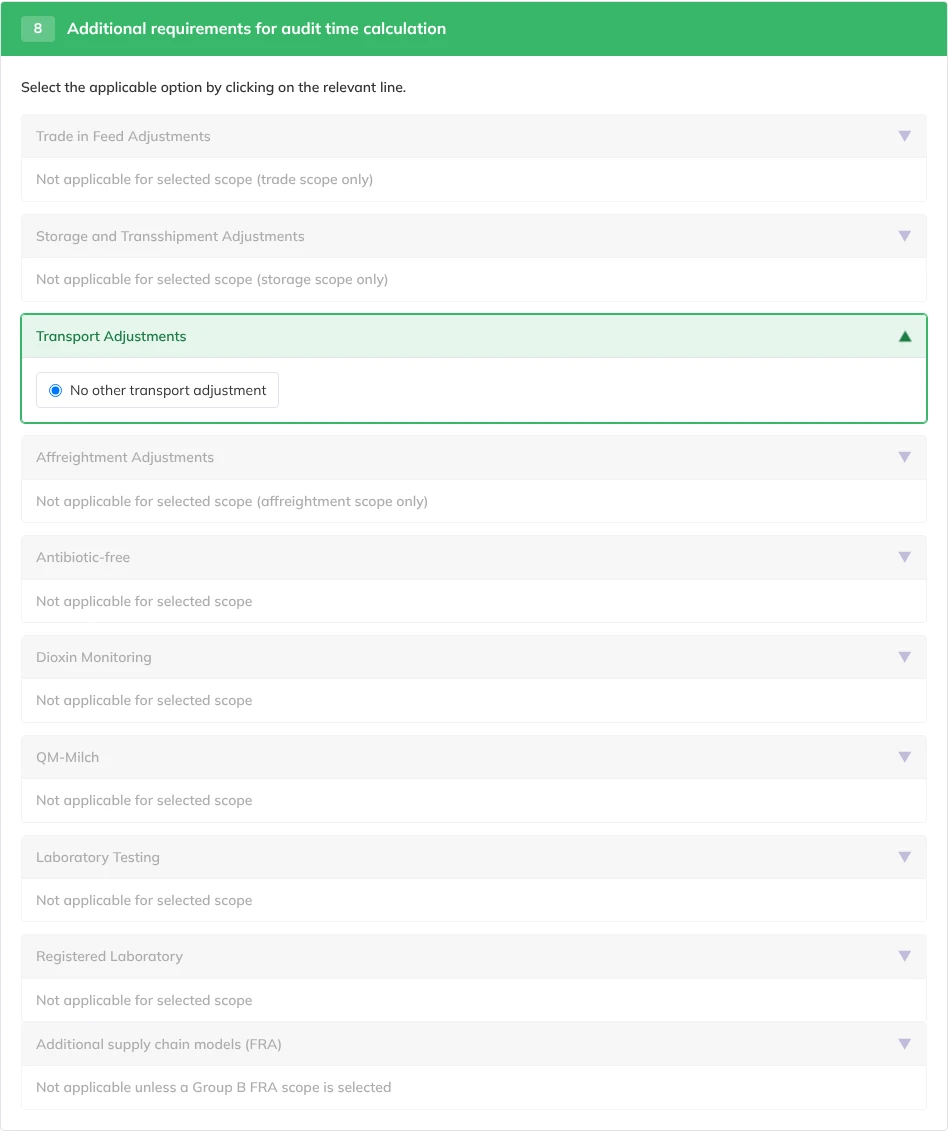
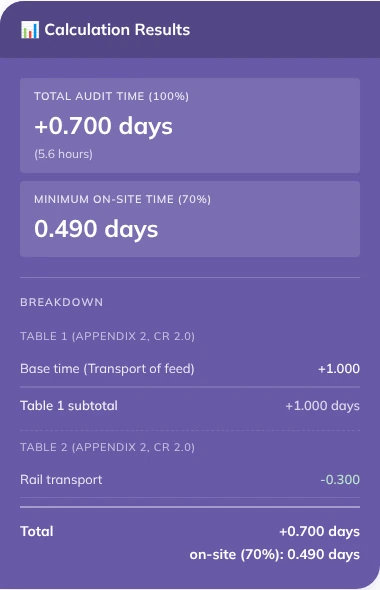
When the primary scope in block 2 is 7. Transport of feed in combination with Rail transport of feed, the calculator takes 0.30 days off on its own. You do not select it: the transport section offers only No other transport adjustment, and with FTE 0 also PO-box and invoicing address. The deduction is not applied when PO-box or invoicing address is selected, or while a block 6 or block 7 percentage greys out the transport section.
Figure 13Block 8 for rail transport. There is no rail option to tick.Figure 14The automatic rail deduction in the breakdown.
2.9Block 9 and 9b, Extra locations
Block 9, additional production locations
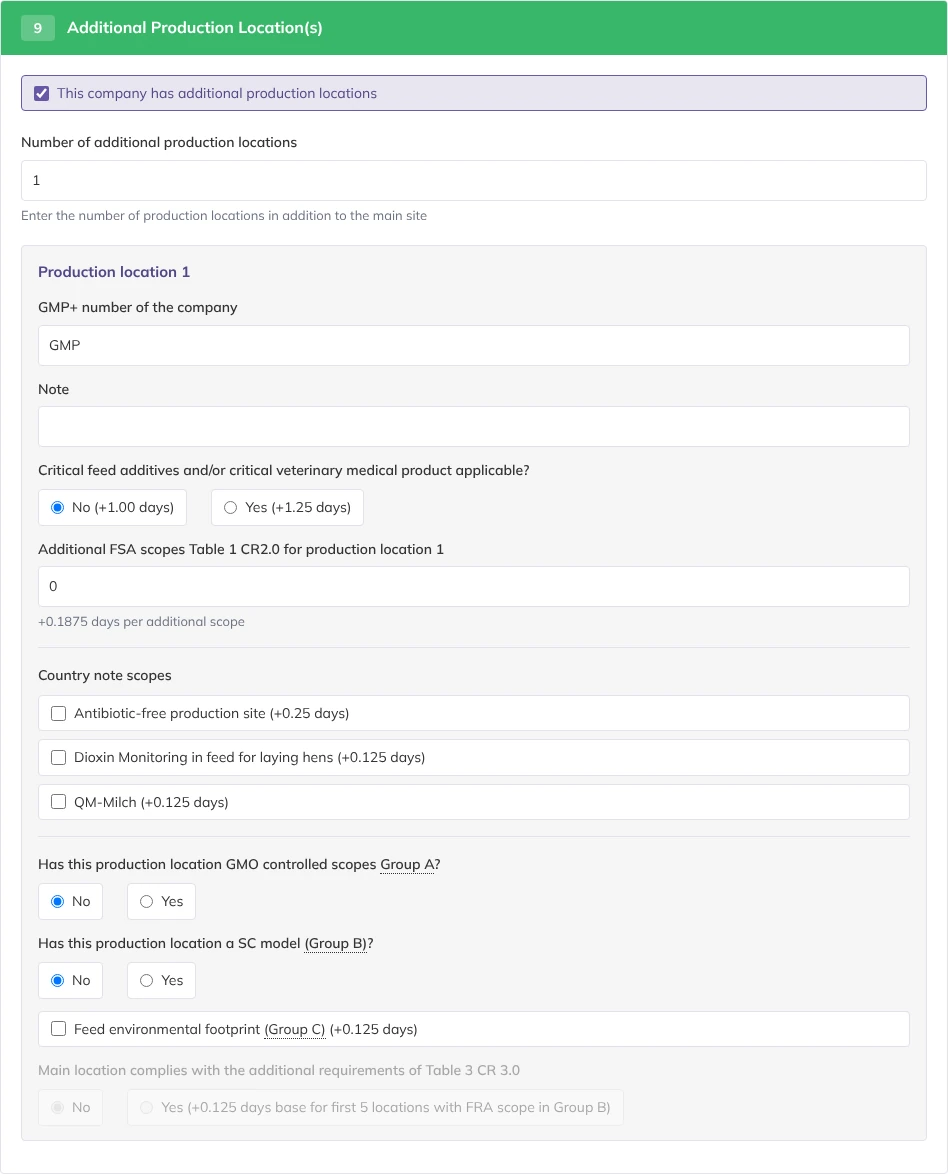
The block Additional Production Location(s) is available for primary scopes 1-5. Tick This company has additional production locations to show the field. Then type the number in Number of additional production locations; the text under the field says Enter the number of production locations in addition to the main site. Unticking the box sets the number back to 0. A card appears for each location, with:
GMP+ number of the company and a free Note (up to 100 characters). Both fields are optional and can help to identify locations.
Critical feed additives and/or critical veterinary medical product applicable?No (+1.00 days) or Yes (+1.25 days). This is the base time of the location.
Additional FSA scopes Table 1 CR2.0 for production location n, +0.1875 days each.
Country note scopes: antibiotic-free (+0.25), dioxin monitoring (+0.125), QM-Milch (+0.125).
The GMO controlled question (group A): Yes adds a base of 0.125 days including one scope, plus 0.063 days for each additional group A scope (0.125 days when there are more than 5 locations).
The SC model question (group B): Yes adds a base of 0.125 days including one SC model, plus 0.063 days for each additional SC model.
Main location complies with the additional requirements of Table 3 CR 3.0. This question can only be answered for locations 1 to 5, and only for a location with an SC model or group C scope. When answered Yes, the group B base and group C are charged on the main location instead, under FRA Scopes (CR3.0 Table 3), and at most 2 additional SC models are charged over locations 1 to 5.
Each location gets its own heading, subtotal and on-site 70% in the breakdown.
Figure 15Block 9 with one additional production location.
Block 9b, secondary laboratory locations
Card 9b appears only when laboratory testing (in block 2 or block 3) is not ISO/IEC 17025 accredited. Type the Number of secondary locations. For each location choose the number of analyses, and tick Also certified for ISO 9001/ISO 22000 (-35%) if that applies. When there is at least one secondary location, the breakdown also adds a one-off Secondary locations surcharge of 1.00 day. The days per location depend on the audit type in block 1.
2.10Block 10, Gatekeeper files
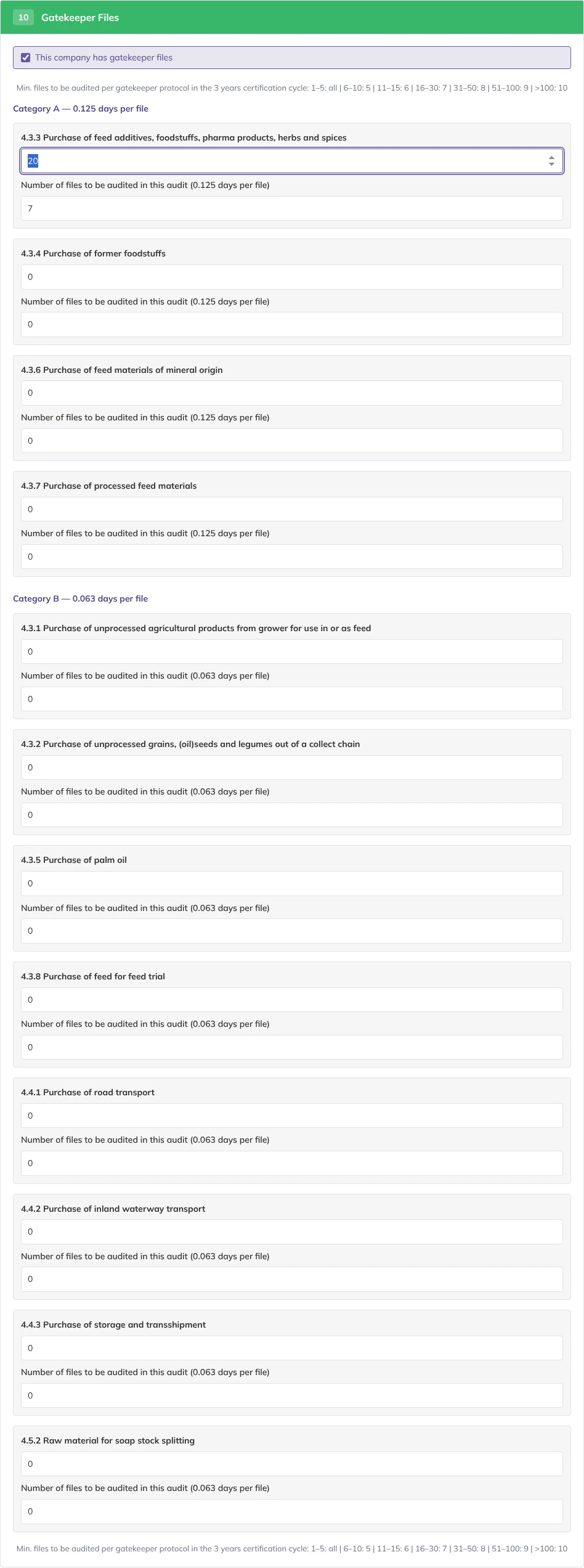
Tick This company has gatekeeper files. The card then lists the gatekeeper protocols of CR2.0:
Category
Days per file
Protocols
A
0.125
4.3.3, 4.3.4, 4.3.6 and 4.3.7
B
0.063
4.3.1, 4.3.2, 4.3.5, 4.3.8, 4.4.1, 4.4.2, 4.4.3 and 4.5.2
Each protocol has two fields.
In the first field, under the protocol name, type the total number of files for that protocol.
The second field, Number of files to be audited in this audit, fills itself with the minimum from the table on the card, Min. files to be audited per gatekeeper protocol in the 3 years certification cycle.
Change the second field if you plan a different number. It cannot be higher than the total.
Total files
1-5
6-10
11-15
16-30
31-50
51-100
>100
Minimum
all
5
6
7
8
9
10
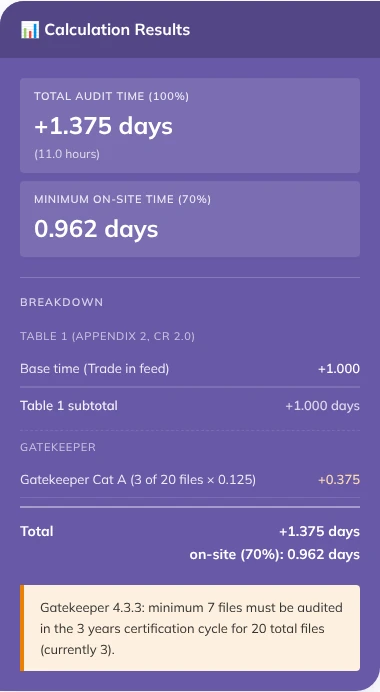
The time is the number of files to be audited times the rate. The breakdown shows one line per category, for example Gatekeeper Cat A (3 of 20 files × 0.125). If you enter fewer files than the minimum, the calculator still uses your number and shows a warning so you know that in one of the other audits in the cycle these gatekeeper files need to be assessed (chapter 3.2).
Figure 16Block 10 after typing 20 files for protocol 4.3.3: the minimum of 7 is filled in.
2.11Block 11, Multi-site
When multi-site is available
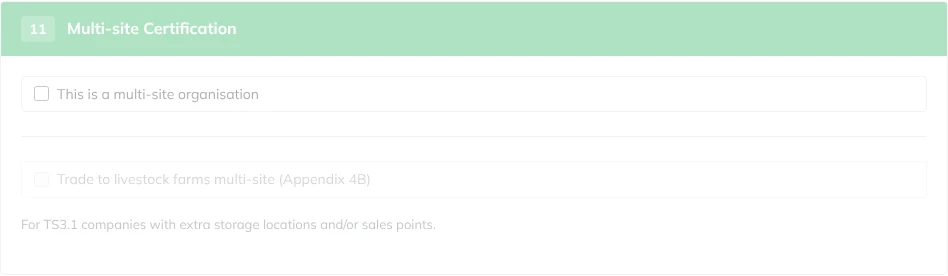
Multi-site is available if one of the following scopes is selected in block 2 Primary scopes or block 3 Additional GMP+ FSA scopes:
Trade in feed;
Storage and Transshipment of feed;
Transport of feed;
Affreightment.
Chapter 2.12 lists the inputs that still grey out block 11 (FTE 0, Inspection, PO-box and invoicing address).
Figure 17Block 11 greyed out because only production scopes apply.
Filling it in
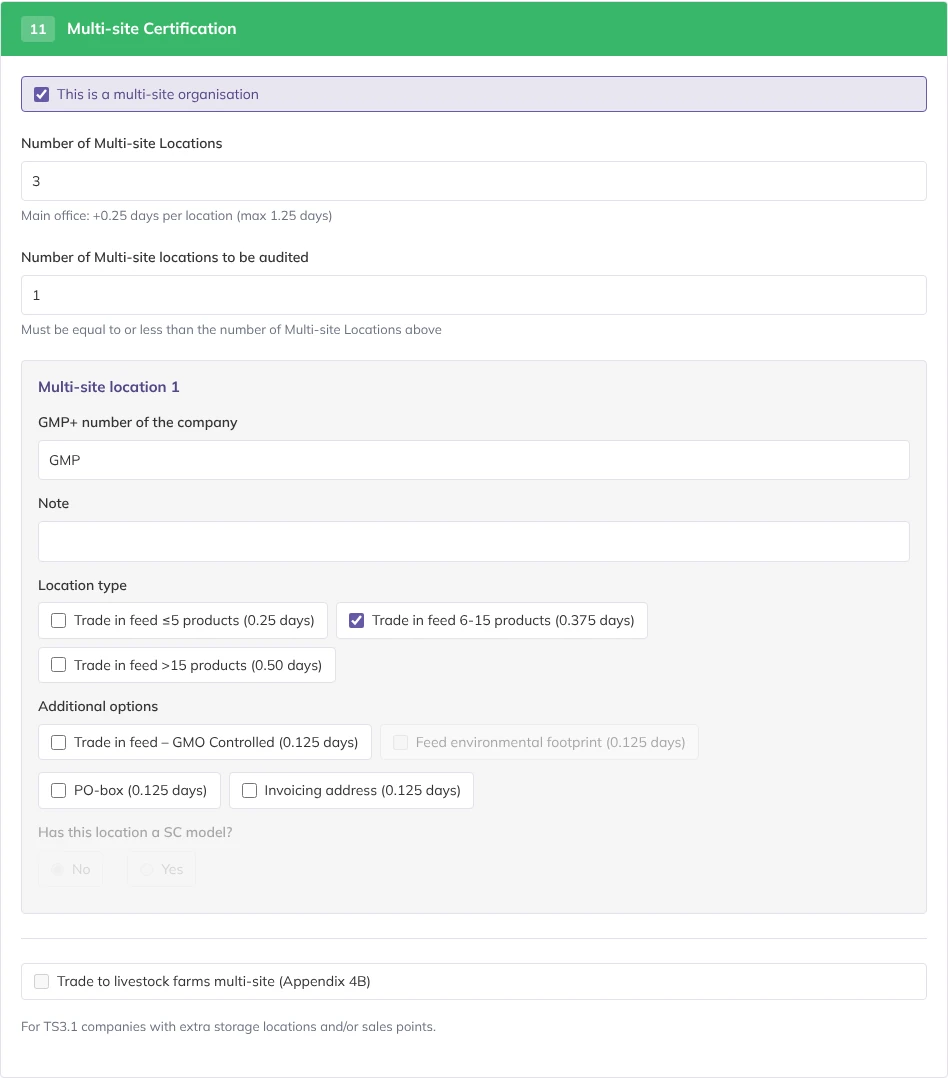
Tick This is a multi-site organisation.
Type the Number of Multi-site Locations. Every location adds 0.25 days at the main office, up to 5 locations (1.25 days). This shows under Table 1 as Main office extra.
Type the Number of Multi-site locations to be audited for this audit. It cannot be higher than the number above. A card appears for each location to be audited.
On each card, choose the applicable scope under Location type, for example Trade in feed 6-15 products (0.375 days). The types to be selected are connected to the trade, storage and road transport scopes in blocks 2 and 3.
Additional options are only available if block 4 has the matching FRA scope. Tick the applicable GMO controlled scope and/or Feed environmental footprint scope, if applicable. The option Has this location a SC model? is only available when block 4 has a group B scope.
If the location is only a PO-box or invoicing address, tick PO-box (0.125 days) or Invoicing address (0.125 days) instead. The location then counts 0.125 days, the other options on the card are locked, and it does not add to the main office extra.
For Has this location a SC model?, Yes adds 0.125 days, plus 0.063 days per additional SC model (0.125 days from location 6).
Figure 18Block 11 for a trader with 3 locations, 1 of them audited.
Trade to livestock farms (Appendix 4B)
Below the multi-site part is Trade to livestock farms multi-site (Appendix 4B), For TS3.1 companies with extra storage locations and/or sales points. Enter Extra storage locations (0.125 days each) and Extra sales points (0.188 days each). This checkbox and This is a multi-site organisation exclude each other: ticking one greys out the other.
The checkbox can only be selected when a trade scope is selected: Trade in feed as primary scope in block 2, or ticked in block 3 (also the pet food variant). Without a trade scope it is greyed out. If you remove the trade scope while the box is ticked, the box is unticked and its numbers go back to 0.
2.12Why a block is greyed out
A greyed out block cannot be clicked and its inputs are reset. Use this table to find the cause.
Cause
What is greyed out
How to undo
Audit type Inspection
Scopes other than transport; blocks 4 to 11; block 3 is hidden
Choose another audit type
FTE 0, primary scope 1 to 4
Blocks 6, 7, 8, 9, 10, 11
Enter the FTE in block 5
FTE 0, primary scope 5 to 8
Blocks 6, 7, 9, 10, 11; block 8 only shows PO-box and invoicing address
Enter the FTE in block 5
Primary scope 9 or 10 (laboratory)
Blocks 5, 6, 7, 9, 10, 11
Not applicable to laboratories
A combined audit type in block 6 selected
Block 7
Set block 6 to No combined audit
Audit time reduction in block 7 ticked
Block 6
Untick Apply audit time reduction
A block 6 or block 7 percentage above 0
Trade, storage, transport and affreightment sections of block 8
Set block 6 to No combined audit or set the percentage in block 7 to 0
A trade, storage, transport or affreightment adjustment in block 8
Blocks 6 and 7
Choose "no adjustment" in that section
PO-box or invoicing address in block 8
Block 11; block 9
Choose another option, for example "no adjustment", in that section
FTE above 0, primary scope 8
The Affreightment Adjustments section of block 8
Not applicable: its only options, PO-box and invoicing address, need FTE 0
Primary scope 6 to 10
Block 9
Not applicable to these scopes
Only production scopes
Block 11
It opens only when a trade, storage, transport or affreightment scope is added in block 3
No group B scope in block 4
Additional supply chain models (FRA) in block 8; the SC model question in block 11
Tick a group B scope in block 4
Appendix 4B ticked, or multi-site ticked
The other one of the two checkboxes in block 11
Untick the one you do not need
No trade scope in block 2 or block 3
Trade to livestock farms multi-site (Appendix 4B) in block 11
Select a trade scope in block 2 or block 3
Part 3Results and scenarios
3.1Reading the results
The panel Calculation Results has two boxes and a breakdown.
Total and minimum on-site time
Total Audit Time (100%): the total in days, and below it in hours (8 hours per day).
Minimum On-site Time (70%): the minimum on-site time, 70% of the total. This part of the audit must take place at the company's site. For 10. Registered laboratory it reads Not applicable.
The breakdown
Every line that adds or removes time is listed, grouped by its source, always in the same order:
Table 1 (Appendix 2, CR 2.0): base time, critical additives, additional scopes, FTE, combined audit or reduction, main office extra for multi-site.
FRA Scopes (CR3.0 Table 2) and FRA Scopes (CR3.0 Table 3).
Table 2 (Appendix 2, CR 2.0): the adjustments of block 8, including rail transport and QM-Milch.
Table 3 (Appendix 2, CR 2.0) and secondary laboratory locations.
Gatekeeper.
Additional production locations, and Multi-site, each per location.
Values that add time are shown in orange, values that take time off in green. Groups with more than one line, Table 1 and FRA scopes always, end with a subtotal.
The Total line inside the breakdown
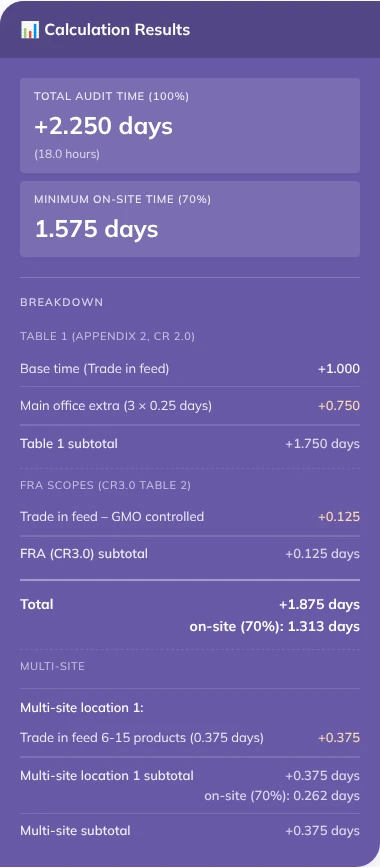
The Total line in the breakdown, with its on-site (70%), covers the main site. When there are additional production locations or multi-site locations, this line sits above them, and each location then has its own subtotal with its own on-site 70%. The big box at the top always shows the grand total of everything.
Figure 19With multi-site, the breakdown Total (1.875) covers the main site; the box at the top (2.250) includes the location.
3.2Warnings
Warnings appear in orange boxes under the breakdown. They tell you something is missing or does not meet a rule. They do not stop the calculation, except where noted.
Warning
What to do
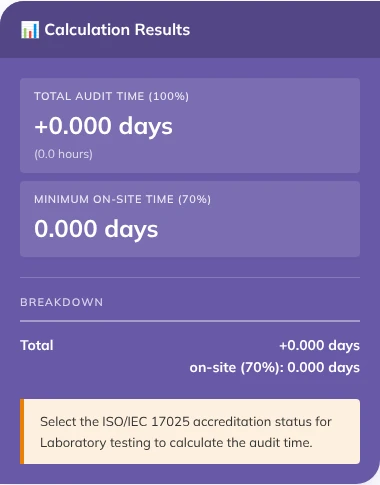
Select the ISO/IEC 17025 accreditation status for Laboratory testing to calculate the audit time.
The total stays at zero until you choose the accreditation status, in block 2 (primary scope) or block 8 (additional scope).
PO-box applies: total audit time is fixed at 0.125 days (1 hour), or the same with Invoicing address
Information. Check that the company really is only a PO-box or invoicing address.
Gatekeeper 4.3.3: minimum 7 files must be audited in the 3 years certification cycle for 20 total files (currently 3).
The protocol number and counts change with your input. Make sure the minimum is reached over the certification cycle.
Audit time reduction not allowed: ...
Remove the block 8 adjustment or the combined audit reduction, or untick block 7.
Multi-site certification NOT permitted when only production scopes are applicable!
Multi-site does not apply to this company.
Figure 20A gatekeeper warning. The calculation still uses the 3 files entered.Figure 21Laboratory testing without an accreditation status.
3.3Save and Load
Save
Fill in the calculator.
Click Save in the top bar.
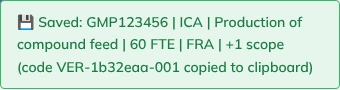
A message appears for a few seconds, for example Saved: GMP123456 | ICA | Production of compound feed | 60 FTE | FRA | +1 scope (code VER-1b32eaa-001 copied to clipboard). The GMP+ number is only shown when it is filled in in block 2.
Figure 22The message after saving.
Scenario name and version code
The scenario name is built from your input: the GMP+ number if filled in, audit type, primary scope, FTE, FRA if an FRA scope is ticked, the number of additional scopes, the number of additional locations, Gatekeeper, the number of multi-site locations and Reduction, separated by |. You cannot type your own name.
The version code is VER-, the short build code of the build stamp (press V to show it), and a sequence number, for example VER-37a3934-001. It is copied to the clipboard when you save, it is shown in the list of saved scenarios, and it is part of the print file name (chapter 3.4).
Scenarios stay in this browser
Scenarios are kept in the storage of the browser you used, on that computer. They are not sent anywhere. Another browser, another computer or a colleague will not see them, and they are lost if the browser data is cleared or you work in a private window. To keep a calculation for the file, print it to PDF (chapter 3.4).
Load
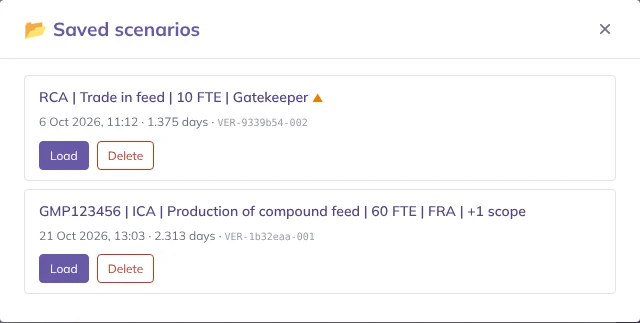
Click Load in the top bar. The window Saved scenarios opens, newest first. Each entry shows the name, the date and time, the total in days and the version code.
Click Load next to the scenario you want. All blocks are filled in again and the message Loaded: with the name appears.
Click Delete to remove a scenario. You are asked to confirm, and it cannot be undone. Close the window with the cross or by clicking outside it.
Figure 23The Saved scenarios window. The orange triangle marks a scenario saved with another version.
The orange triangle
An orange triangle after the name means the scenario was saved with a different version of the calculator than the one you are using now. Point at it to read: "Saved with an older version (...), current version is .... This scenario may not load correctly or the result may differ." Load it, then check every block and compare the total with the total shown in the list. If a scenario cannot be restored completely, the message Scenario could not be fully restored. Check the inputs. appears.
3.4Print and PDF
Fill in the GMP+ number in block 2 if you want it in the file name.
Click Print in the top bar. The print window of your browser opens.
Choose a printer, or choose to save as PDF.
The printout leaves out the buttons of the top bar and puts the results on a page of their own, after the blocks.
When you save as PDF, the browser suggests a file name made of the date, the version code, the GMP+ number, the scenario name and a fixed ending:
The full version code is used when the calculation was saved or loaded and not changed since. Otherwise only the build code is used, for example VER-37a3934.
The GMP+ number appears once in the file name, even when the scenario name already starts with it.
3.5Reset
Reset, the orange button, reloads the page. Every block goes back to empty, and you return to the top. Saved scenarios are kept. There is no undo, so save first if you may need the input again.
Part 4Reference
4.1Questions and problems
A whole block is faded and I cannot click it
The block does not apply to the input above it. Look up the cause in chapter 2.12. The most common one is FTE 0 in block 5.
An option I expect in block 8 is missing
The FTE-based reductions only show for the matching FTE and a single scope, with nothing in block 3 or 4 (chapter 2.8). The rail transport option is never shown because it is applied automatically. With primary scope 5 to 8 and FTE 0, only PO-box and invoicing address are offered; with FTE above 0 they are not offered.
Block 3 says "Please select Transport type first to show available options."
Choose road or rail under Transport type in block 2.
The total is 0.125 days whatever I enter
A PO-box or invoicing address option is chosen in block 8. Choose the "no adjustment" option in that section.
The total is zero for a laboratory
Choose the ISO/IEC 17025 accreditation status, or for a registered laboratory the outsourcing type, in block 2.
My second group B scope shows 0.000
That is correct. All group B scopes are counted once (chapter 2.4).
The Total in the breakdown differs from the big box
The breakdown Total covers the main site. Additional production locations and multi-site locations come after it with their own subtotals. The big box includes them (chapter 3.1).
Save says "Cannot save: code version not yet loaded. Try again in a moment."
The page has not yet read its version. Wait a moment and click Save again. If it keeps happening, you are probably using a local copy of the calculator; open audittimecalculatorcertificationbodies.pages.dev or audittimecalculatorcompanies.pages.dev instead.
My saved scenarios are gone
Scenarios live in one browser on one computer (chapter 3.3). Check that you use the same browser and computer, and not a private window.
The top bar says "newer version available, reload"
The page you have open is older than the published calculator. Reload the page before you calculate.
A red bar says "Unauthorised copy of the GMP+ Audit Time Calculator"
You are not on the official address. Results from a copy may be changed and are not endorsed by GMP+ International. Use audittimecalculatorcertificationbodies.pages.dev or audittimecalculatorcompanies.pages.dev.
A number changed while I was scrolling
The calculator prevents this: scrolling the mouse wheel takes the focus away from a number field. When you click into a number field, its value is selected, so typing replaces it.
I think a result is wrong
Save the scenario, note the version code, and print it to PDF. Check the calculation against CR2.0 and CR3.0. Send the code, the PDF and what you expected to certification@gmpplus.org.
4.2Version and changes
The top bar shows the scheme version. The build stamp is hidden: press the V key to show it, and again to hide it. V does nothing while you type in a field.
The scheme version, Based on CR2.0 and CR3.0 both Version EN: 2 March 2026, is the version of the rules the calculator follows.
The build stamp, for example Last updated: 20 Nov 2026, 16:19 | 8eec7b4, gives the date of the last change to the calculator and its short code. The same code is part of every version code you save, so a saved scenario always shows which version it came from. When a newer version is published, the stamp turns orange and adds newer version available, reload; then it is always shown, without the V key.
This manual matches build 5337713 of 20 November 2026, the latest version of the calculator. If the top bar shows a later build, labels or behaviour may have changed since. The changes to this manual itself are in the change log, behind the button at the top of this page; the V key opens and closes it too.
If you have any additional questions or feedback you can contact the GMP+ helpdesk info@gmpplus.org.
4.3Where each statement comes from
The code of the calculator is the source for every statement in this manual. Where older documentation disagreed with the code, the code was followed.
Chapters
Source
Checked on
1.1
The calculator header and footer, and the internal memo on the calculator (29 April 2026)
9 October 2026
1.2 to 2.12
Labels and rules read from the calculator code, build 37a3934, and walked through in the browser; the Manual button checked in build d365de6
9 October 2026
3.1 and 3.2
Breakdown and warning texts read from the code and produced in the browser
9 October 2026
3.3 to 3.5
Save, Load, Print and Reset code, walked through in the browser
9 October 2026
4.1 and 4.2
Messages and build stamp read from the code
9 October 2026
2.1 to 2.12, 3.1, 3.3 and 3.4
The statements changed in version 1.2: the review of 21 October 2026 and the five calculator changes of that day, read again in the code of the calculator
21 October 2026
The screenshots were made with an automated browser on a copy of the calculator that was given its build stamp, so that the stamp and Save work as they do on the published site. All figures were captured on 20 November 2026 from the Certification Body version.
Change log
Each line below describes what changed in that version of this manual.
Version 1.6, 20 November 2026
The calculator no longer needs a login. It has two official addresses: audittimecalculatorcertificationbodies.pages.dev for the Certification Body version and audittimecalculatorcompanies.pages.dev for the Company version (chapters 1.1 and 4.1). The old address audit-calc.pages.dev shows a page with links to both.
Block 8: an opened section has a light green frame (chapter 2.8, Figures 11 and 13).
In this manual the V key opens and closes the change log.
Version 1.5, 20 November 2026
The manual is now offered as a PDF (Download PDF at the top) instead of a Word file.
About this manual: the box The result is a minimum is removed; the box Disclaimer covers it.
Chapter 3.3 and 3.4: the code of a saved scenario is now the version code, for example VER-37a3934-001 (was MAN-...). The print file name starts with the date and the version code.
Chapter 1.2: the title shows the badge Certification Body version or Company version. The build stamp is hidden; the V key shows or hides it (chapter 4.3).
Figures recaptured: the top bar with the badge, and the version codes in Figures 22 and 23.
Version 1.4, 20 November 2026
New box Disclaimer at the top of this manual. The calculator shows the same disclaimer in its footer and under the top bar.
Breakdown: Additional FSA scopes (n × 0.1875); FRA lines show the scope name without FRA:; Table 3 lines use the full names, for example Laboratory Testing (Partly ISO/IEC 17025 acc., 5 – 15 analyses) (chapters 2.3 and 3.1).
Breakdown colours: time added is orange, time taken off is green (chapter 3.1).
Block 2: the TD under each scope has three decimals, for example 1.750 (chapter 2.2).
All screenshots recaptured from the current calculator.
Version 1.3, 6 November 2026
The progress counter, the Clear progress button and the tick box in front of each chapter title are removed from the top of the manual.
British English is used for the wording of the calculator and this manual.
Chapter 1.2: on a narrow screen the results sit below the blocks, in addition on a phone also the five buttons move to a bar at the bottom of the screen.
Chapter 4.2: contact details of the GMP+ helpdesk added.
Calculator labels renamed (chapters 2.1 to 2.9): Select the audit type, Enter the GMP+ number of the company (optional), Select the highest ranked scope which determines the basic audit time (TD), Additional GMP+ FSA Scopes, Additional GMP+ FRA Scopes, Number of employees, Combined Audit Time Reduction and Select Combined Audit Type.
Block 2: the GMP+ number is shown next to Breakdown in the results (chapters 2.2 and 3.1).
Blocks 6 and 9 now start with a tick box (Apply combined audit time reduction, This company has additional production locations) that shows the existing fields (chapters 2.6 and 2.9).
Block 8: the text Select the applicable option by clicking on the relevant line is added and the icons in front of the section titles are removed (chapter 2.8).
Screenshots recaptured from the current calculator (Figures 1 to 9, 11, 13, 15, 17 and 18) so they show the new labels, the tick boxes in blocks 6 and 9 and block 8 without icons. Figure 2 now shows the GMP+ number next to Breakdown.
The titles of chapters 2.3 and 2.4 now read Block 3, Additional GMP+ FSA scopes and Block 4, Additional GMP+ FRA scopes, like the cards.
Version 1.2, 21 October 2026
The manual is now English only. The language switch and the Dutch version are removed.
Chapters are numbered per part (1.1, 1.2, 2.1, 2.2 and so on) in the contents, the tick boxes, the search results and the Word version.
Edits from the GMP+ review: shorter text in several chapters, a new list of the scope ranking in chapter 2.2, the worked example of version 1.0, the separate Inspection section and the summary at the top of the page are removed, and Figures 1 and 2 swap places.
Block 8: the text Not applicable for selected scope (trade scope only) of a faded section now has the same type and colour as the section title (chapter 2.8).
PO-box and invoicing address: the breakdown shows the single line without the group heading Override (chapters 2.8 and 3.1).
Breakdown: Gatekeeper now comes after Table 3 and the secondary laboratory locations (chapter 3.1).
Block 11: Trade to livestock farms multi-site (Appendix 4B) can only be selected when a trade scope is selected in block 2 or block 3 (chapters 2.11 and 2.12).
Save: the name of a saved scenario starts with the GMP+ number when it is filled in, and the print file name shows the number once (chapters 2.2, 3.3 and 3.4).
Version 1.1, 12 October 2026
The manual is offered in English only. The language switch is hidden.
Block 8: with primary scope 5 to 8 and FTE above 0, the PO-box and invoicing address options are no longer shown (chapters 2.5 and 2.8). With primary scope 8 the Affreightment Adjustments section is then greyed out, because nothing is left to choose.
The Additional SC models line now comes directly under the group B lines in the breakdown (chapter 2.4).
Version 1.0, 9 October 2026
First release as an e-learning in English and Dutch, with a language switch at the top of the page. The labels of the calculator stay in English in both versions.
New search: type a few words or a question, in English or Dutch, and choose from a ranked list. A result opens at the exact paragraph and marks the words that were found.
Search knows the words auditors use for the same thing, such as FTE and staff, multi-site and locations, PO box and postbox, gatekeeper and GK.
A summary at the top of the page gives every chapter in one line, and a tick box per chapter keeps track of what you have read.
The top bar of the calculator now has a Manual button that opens this manual. Figures 1 and 4 show it.
The manual always matches the latest calculator build, shown at the top of the page.